Documentation Index
Fetch the complete documentation index at: https://docs.nuon.co/llms.txt
Use this file to discover all available pages before exploring further.
Using the CLI to create and manage installs
The CLI allows you to embed install management scripts, or install provisioning into your workflow.
Every install command takes --install-id/-i to target a specific install, or you can pin a default with nuon installs select and omit the flag on subsequent commands.
Create an install
Before creating an install, run nuon auth login to authenticate and nuon apps select to make sure you are on the right app.
To see every flag:
nuon installs create --help
The most common flags are:
--name — the name for this install
--region — the cloud region to provision into
--inputs — key=value pairs for the app’s inputs
A simple invocation:
nuon installs create --name acme-corp --region us-east-1
Passing inputs inline:
nuon installs create \
--name acme-corp \
--region us-east-1 \
--inputs healthcheck_interval_seconds=10
After the command runs, a list of your available apps appears. Select one and you’ll be redirected to the install page in the browser.
Find and select an install
List, fetch, and pin installs:
nuon installs list
nuon installs get -i <install-id>
nuon installs select # pins an install as the default for -i
nuon installs deselect
Pinning is helpful when running several commands against the same install — each subsequent command skips -i.
nuon installs current-inputs -i <install-id>
nuon installs update-input -i <install-id> --inputs key=value
Updating inputs on a provisioned install triggers the workflows needed to propagate the change to any components that depend on them.
Config-file-driven installs
You can describe installs declaratively in TOML files and sync them to Nuon. This is the pattern used in CI and for managing many installs at once.
nuon installs sync -a <app-name-or-id> -d <path-to-file-or-dir>
nuon installs generate-config -i <install-id>
nuon installs toggle-sync -i <install-id> --enable
For the install config file schema, see the install config reference.
Deploy and redeploy components
nuon installs deploy-components -i <install-id>
nuon installs teardown-component -i <install-id> --component-id <id>
nuon installs teardown-components -i <install-id>
Manage workflows and approvals
Install lifecycle events run as workflows. The CLI has an optional TUI that you can start with:
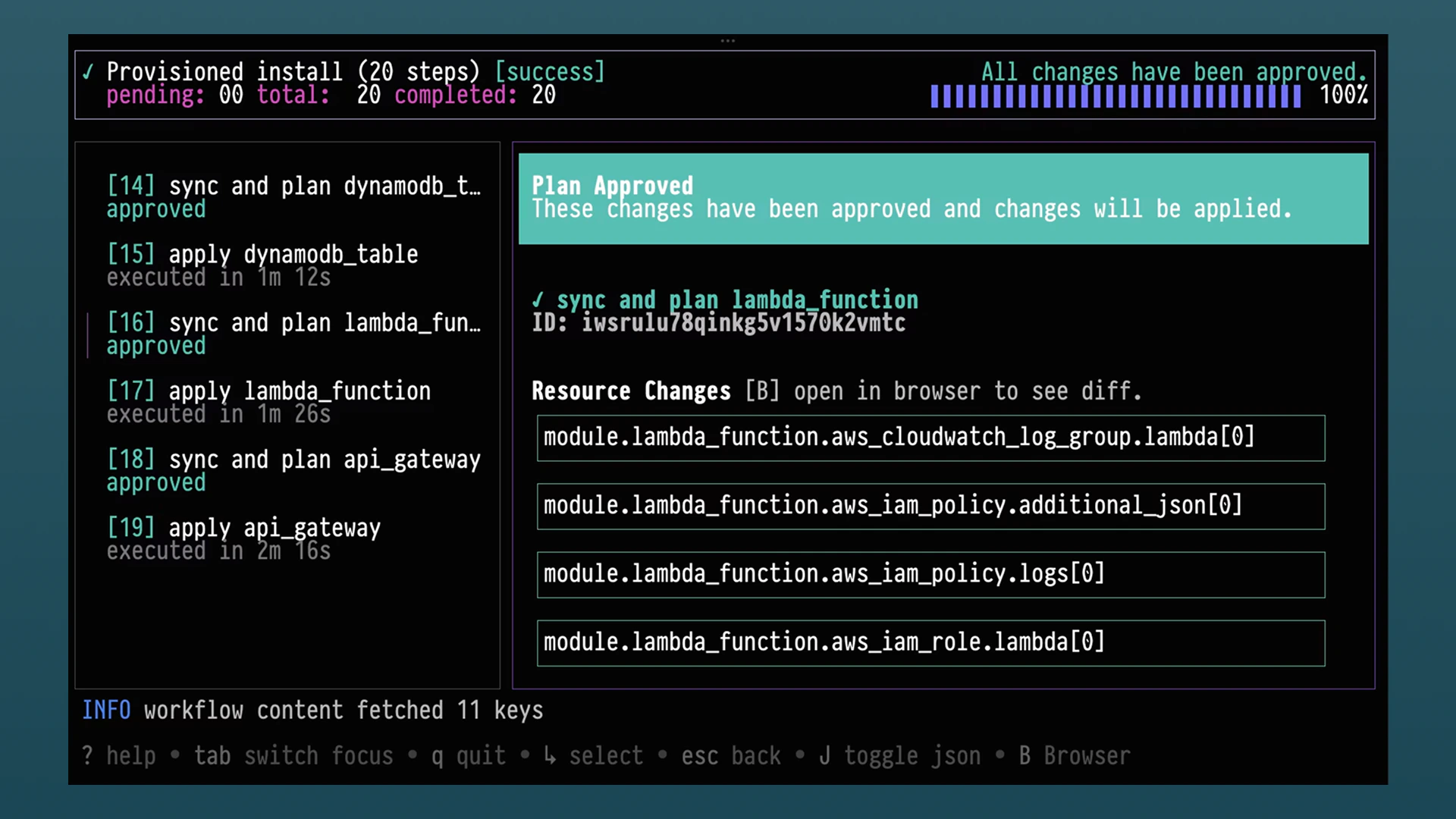
Or you can jump right into a specific install with:
nuon installs workflows watch -i <install-id>
Or run the steps individually:
nuon installs workflows list -i <install-id>
nuon installs workflows steps approve -i <install-id> --workflow-id <wf> --step-id <step>
nuon installs workflows steps reject -i <install-id> --workflow-id <wf> --step-id <step>
nuon installs workflows steps retry -i <install-id> --workflow-id <wf> --step-id <step>
Reprovision, deprovision, forget
nuon installs reprovision -i <install-id>
nuon installs deprovision -i <install-id>
nuon installs forget -i <install-id>
forget removes an install from the control plane without running deprovision workflows. Reserve it for installs that are stuck in an unrecoverable state.
Extend the CLI
The CLI is extensible — you can publish your own nuon <tool> commands that ship alongside install management. For how to build, distribute, and auth custom commands, see the CLI Extensions guide.
Command reference
For the complete command list and every flag, run: